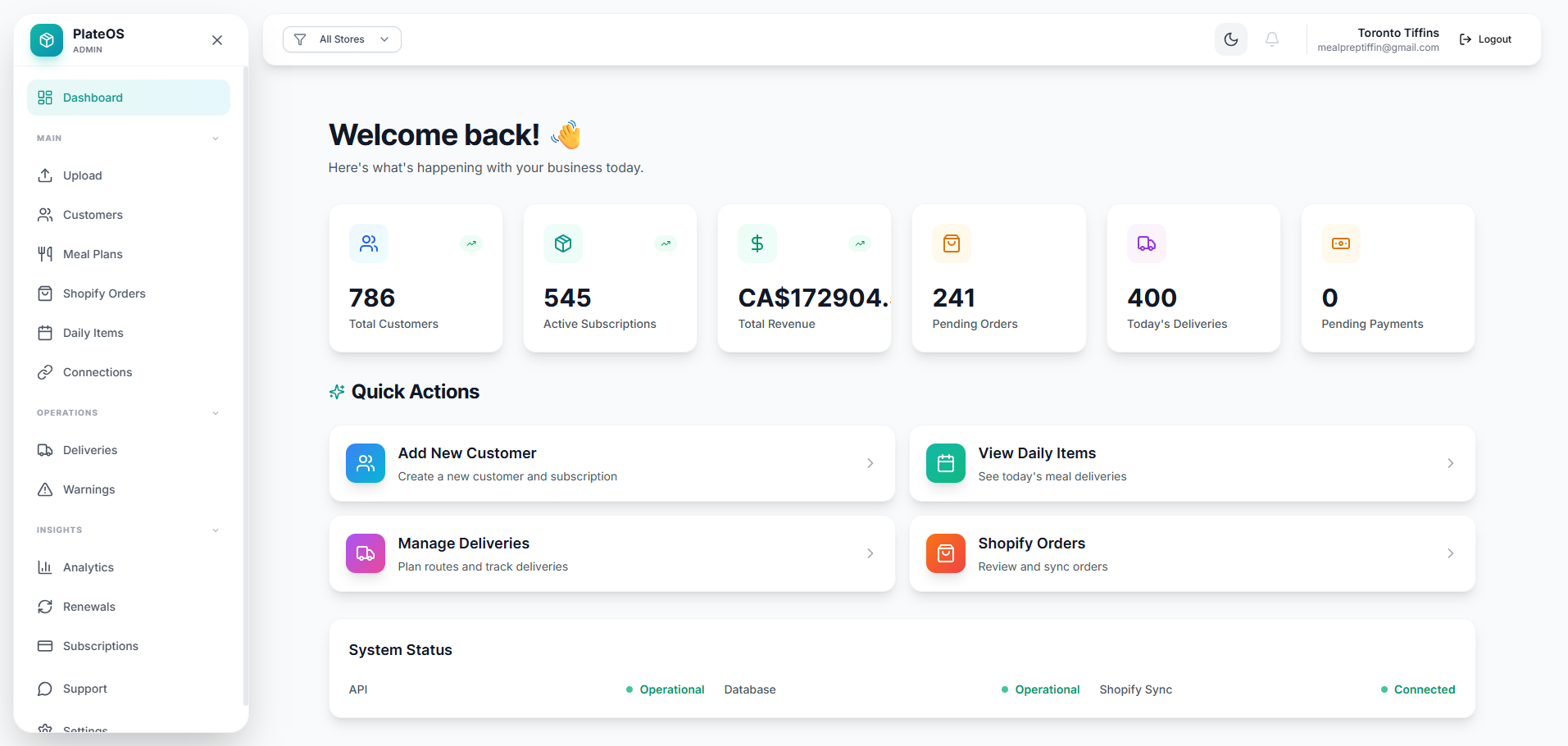
Inside PlateOS: an operations dashboard. This earlier interface shows how the work is connected; current layouts vary.
HOW IT WORKS
From the request to the work behind it.
01
Plan from the deliveries you actually owe
Bring eligible deliveries into the planning workspace for the selected date. Use delivery zones and driver assignments to organise the work, then inspect route stops on the map. Route planning works with the operational data already in PlateOS, reducing the need to rebuild a customer list elsewhere.
Date-specific delivery workspace
Zone and driver assignment
Route optimisation and stop ordering
02
Make dispatch changes where you can see them
Select stops on the map, move them between routes and adjust their order. The map and route view keep the changes visible, with save feedback while updates are processed. A full-screen workspace gives dispatchers more room to work through a busy day.
Single-stop and multi-stop selection
Move stops between routes
Review route changes before publishing
03
Follow the delivery through to completion
Drivers open their route using a browser link. The driver portal supports delivery status and proof of delivery, while the admin tracking view helps the office follow progress. If you use Spoke, configure the sync window and PlateOS email/SMS notifications to avoid duplicating the messages your delivery provider already sends.
Driver portal and navigation
Customer tracking links
Separate email and SMS notification controls
BEFORE YOU START
A few useful answers.
Do drivers need a native mobile app?
No. PlateOS provides a browser-based driver portal through a route link.
Can I move several stops together?
Yes. The map workspace supports selecting multiple stops and moving them between routes. Changes still need to be saved successfully before you treat them as published.
Can I use Spoke with PlateOS?
Yes. The Spoke integration supports configured synchronisation windows. You can choose whether PlateOS also sends customer email and SMS updates.
 PlateOS