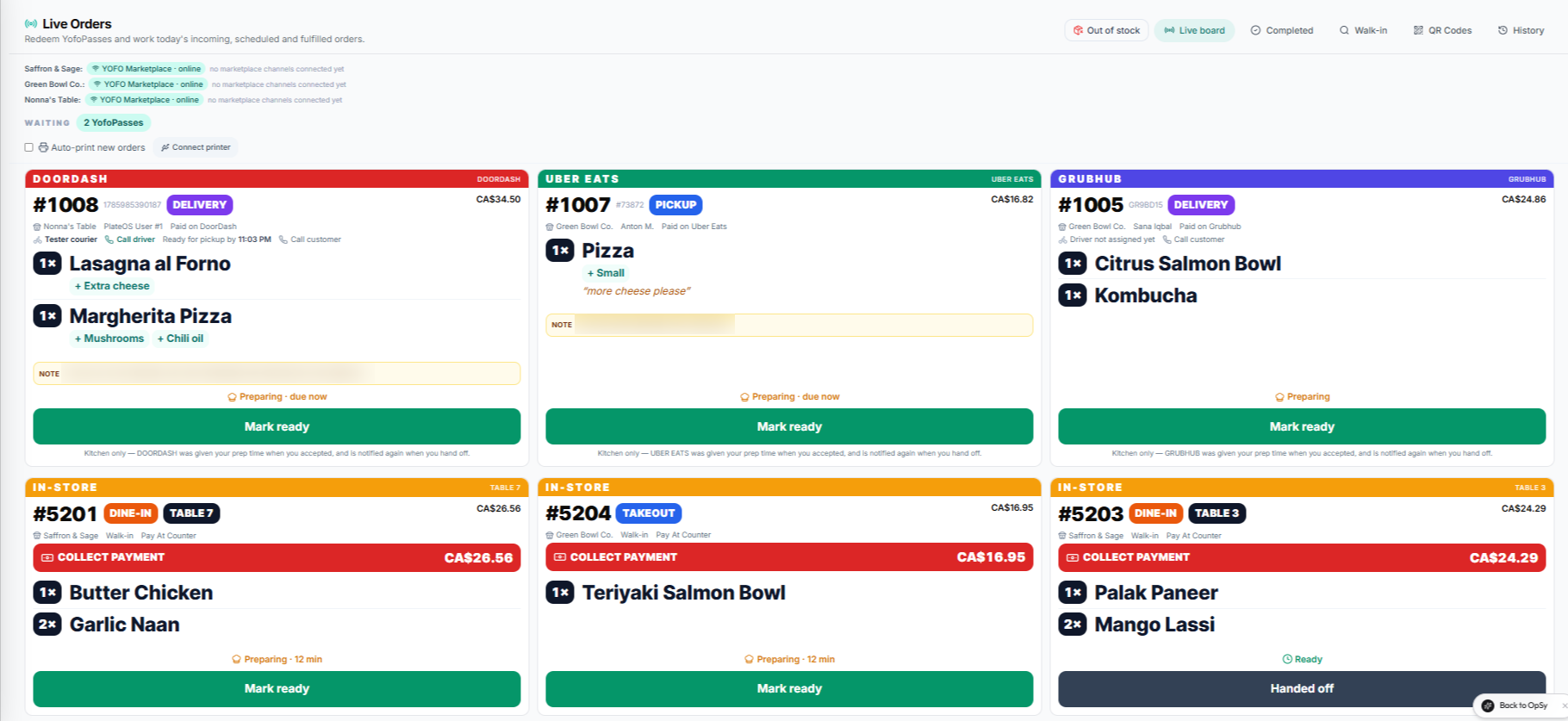
Inside PlateOS: OrderHub order tickets. Cropped product capture with demonstration orders.
HOW IT WORKS
From the request to the work behind it.
01
Give every code the right context
Create a QR ordering link for the relevant store and, when appropriate, a table. The customer arrives with that context instead of being asked to find your business again. Keep table naming consistent with the way your team runs service.
Select the correct store
Attach a table where needed
Use the supported QR ordering experience
02
Manage the codes you actually use
The QR manager keeps a list of active codes and provides printable output. Before placing a code on a table, scan the printed version and walk through the menu, fulfilment and payment choices your store exposes. The code is the entry point; your catalogue controls what the guest can order.
Generate printable QR codes
Review active codes
Test the customer journey before service
03
Keep ordering connected to the kitchen
QR orders enter supported PlateOS order workflows with their store and table details. Staff can follow the ticket through service rather than copying an order from an unrelated form. Use clear guest instructions for any pay-at-counter or collection steps configured by your business.
Store and table context on the order
Connected order handling
Guest instructions that match your setup
BEFORE YOU START
A few useful answers.
Do guests need to download an app?
No. A QR code opens a browser-based ordering page.
Can different stores have different codes?
Yes. Codes carry the appropriate store context, and table codes can carry a table reference.
Will a QR code automatically enable every payment option?
No. The available ordering and payment options depend on your store configuration. Test them before printing codes for service.
 PlateOS